GreenRADIUS Self-Service Portal Access Control
This guide explains how to use the self-service-access-control command-line tool to restrict access to the GreenRADIUS Self-Service Portal by client IP address or network.
How Access Control Works
Allowed Clients
Allowed clients are the IP addresses and networks permitted to access the Self-Service Portal. You can add individual IPv4 or IPv6 addresses, or networks in CIDR notation. For example:
192.0.2.25allows one IPv4 address.192.0.2.0/24allows an IPv4 network.2001:db8:1234::/48allows an IPv6 network.
If the Allowed clients list contains one or more entries, only the listed addresses and networks can access the Self-Service Portal. If the list is empty, access control is disabled and the portal is accessible from any IP address that can reach it.
Trusted Proxies
A proxy is a server between a client and GreenRADIUS. Examples include a reverse proxy, load balancer, web application firewall, and ingress controller.
If clients connect directly to GreenRADIUS, GreenRADIUS normally sees each client's IP address and no trusted proxy needs to be configured.
If clients connect through a proxy, GreenRADIUS initially sees the proxy's IP address. The proxy can provide the original client IP address in the X-Forwarded-For HTTP header. To allow GreenRADIUS to use this header, add the IP address or network of the proxy that connects directly to GreenRADIUS to the Trusted proxies list.
Enter the proxy's address, not the end client's address, under Trusted proxies. The end client's address or network belongs under Allowed clients.
The Trusted proxies list determines which systems GreenRADIUS trusts to report client addresses. It does not grant access to the Self-Service Portal by itself.
X-Forwarded-For Header
When a trusted proxy is used, GreenRADIUS reads the original client IP address from the X-Forwarded-For header.
Example Request
A request from client 192.0.2.25 passes through reverse proxy 10.10.0.20 before reaching GreenRADIUS.
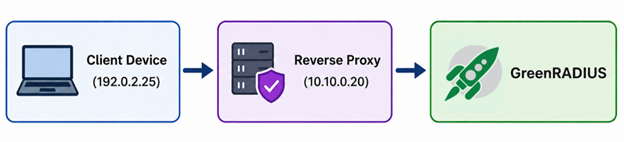
The reverse proxy reports the original client IP address in the following header:
X-Forwarded-For: 192.0.2.25
For this example, configure:
- Allowed client:
192.0.2.25 - Trusted proxy:
10.10.0.20
If the deployment uses multiple proxies, configure the trusted proxy addresses or networks according to the proxy topology. Confirm the source address of the system connecting directly to GreenRADIUS, as well as the behavior of the X-Forwarded-For header, with the network or proxy administrator.
Security note: A trusted proxy can influence the client address GreenRADIUS uses for access-control decisions. Add only infrastructure that is fully controlled and configured to set or sanitize the
X-Forwarded-Forheader.
Requirements
- GreenRADIUS v6.1.17.17 or later is installed.
- The GreenRADIUS services and containers are running.
- You have shell access to GreenRADIUS using an account with root privileges or permission to use
sudo.
Run the Configuration Tool
Start a login shell through SSH or the GreenRADIUS console, and run:
self-service-access-control
The tool requests sudo authentication and elevates its privileges when required.
After the required privileges are established, the Self-Service Portal Access Control interface appears.
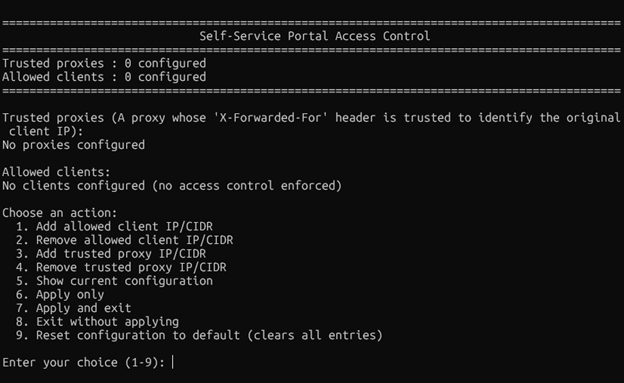
Enter the number of the action you want to perform:
- Add an allowed client IP address or network.
- Remove an allowed client IP address or network.
- Add a trusted proxy IP address or network.
- Remove a trusted proxy IP address or network.
- Display the current configuration.
- Apply the configuration without exiting the tool.
- Apply the configuration and exit the tool.
- Exit without applying the unsaved changes made during the current session.
- Reset the configuration to its default state by clearing all entries.
Important: Option 8 discards changes made since the configuration was last applied. Option 9 clears both the Allowed clients and Trusted proxies lists. An empty Allowed clients list disables access control, making the Self-Service Portal accessible from any IP address that can reach it.
Troubleshooting
Everyone Is Denied
Confirm that the user's actual client IP address or network is listed under Allowed clients. If a proxy is used, also confirm that the IP address or network from which the proxy connects to GreenRADIUS is listed under Trusted proxies.
The Proxy Is Trusted, but the Client Is Denied
The proxy's address belongs under Trusted proxies, while the original client's address or network belongs under Allowed clients. Adding only the proxy address to Allowed clients does not allow the client addresses behind that proxy.
Also confirm that the proxy sets or sanitizes the X-Forwarded-For header correctly and that GreenRADIUS sees the expected proxy source address.
Access Control Is Not Enforced
Confirm that Allowed clients contains at least one entry. An empty list disables access control.
If you changed the configuration during the current session, select option 6 or option 7 to apply it. Option 8 exits without applying unsaved changes.
Changes Do Not Apply
Confirm that all GreenRADIUS services and containers are running, that you selected option 6 or option 7 to apply the configuration, and that the administrator account has permission to run sudo commands.
If the issue persists, contact Green Rocket Security Support for assistance.
© 2026 Green Rocket Security Inc. All rights reserved.