GreenRADIUS PAM RADIUS Module for Ubuntu
Introduction
This document explains how to enable Two-Factor Authentication (2FA) for SSH users in Ubuntu using GreenRADIUS virtual appliance.
Prequisites
- This document assumes that GreenRADIUS Virtual Appliance is already set up with users in Ubuntu host using GreenRADIUS Virtual Appliance.
- Ubuntu host 32 or 64 bit
Steps to be Performed on Ubuntu Host
- Login to Ubuntu host using any SSH client programs like PuTTY
- Change current directory to "/tmp" directory using the following command:
cd /tmp/ - Download the "pam_radius_auth.so" file using the following command:
sudo wget -O "pam_radius_auth.so""https://files.greenrocketsecurity.com/pamradiusubuntu" - For 32 bit Ubuntu host, copy the 'pam_radius_auth.so' file to '/lib/security/' using the following command:
sudo cp pam_radius_auth.so /lib/security/ - For 64 bit Ubuntu host, copy the 'pam_radius_auth.so' file to '/lib64/security/' using the following command:
sudo cp pam_radius_auth.so /lib/x86_64-linux-gnu/security/ - Edit file '/etc/pam.d/sshd' and add the following line at the top of this file:
auth required pam_radius_auth.so - Comment the line "@include common-auth" as follows and save the file:
#@include common-auth - Create a directory "raddb" in "/etc/" folder using the following command:
sudo mkdir /etc/raddb/ - Change current directory to "raddb" directory and create a file named "server" using the following commands:
cd /etc/raddb/sudo touch server - Edit the file "/etc/raddb/server" and add the following details into this file (each separated by a space):
<<GreenRADIUS Virtual Appliance IP>><<Shared Secret>><<Timeout(seconds)>>E.g. If your GreenRADIUS Virtual Appliance IP address is "10.51.0.100" and shared secret is "test," you can use the following configuration:10.51.0.100 test 3 - Add a new user without password to the server using the following command:
useradd -d /home/<<user name>> -m <<user name>>E.g. If you want to add user say "john," you can use the following command to add user:useradd -d /home/john -m johnNote: The username added must also be present in any one of the domains created in GreenRADIUS Virtual Appliance. - Restart SSH service using the following command:
sudo /etc/init.d/ssh restart
Steps to Be Performed On GreenRADIUS
- Click the Global Configuration tab
- Click the Client-based Authentication Policies icon
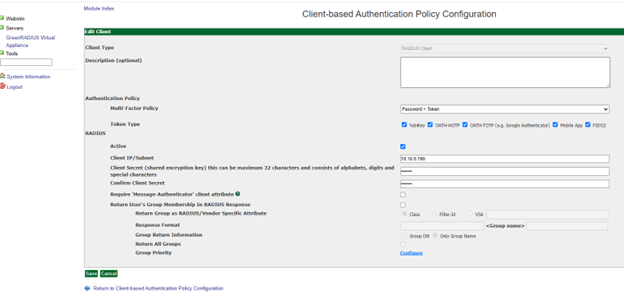
- Enter the IP address of the Ubuntu SSH server. Then enter the same RADIUS secret twice. Then click the Add button.
Test SSH Login on Ubuntu Host Using Two-Factor Authentication
- Login to RedHat host using any SSH client programs like PuTTY
- Type username and hit enter
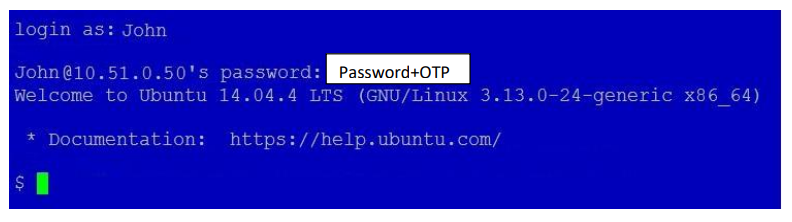
- You will be prompted for the password. At the prompt for the password, enter the user's password configured in Active Directory/LDAP and immediately followed by an OTP from a token assigned to the user (in our case "John").
- e.g. if username is "John," test login as shown in the image below:
SSH Login with Prompt for OTP
If you want to enable SSH login to prompt for OTP, follow the below steps.
Additional Steps to Be Performed On Ubuntu Host
- First follow the steps performed in the above section "Steps to be performed on Ubuntu host"
- Edit the file "/etc/ssh/sshd_config"
- Find the line "ChallengeResponseAuthentication no" and change it to "ChallengeResponseAuthentication yes"
- Restart SSH service using the following command:
sudo /etc/init.d/ssh restart
Steps to be Performed on GreenRADIUS
-
Log in to the GreenRADIUS web admin console
-
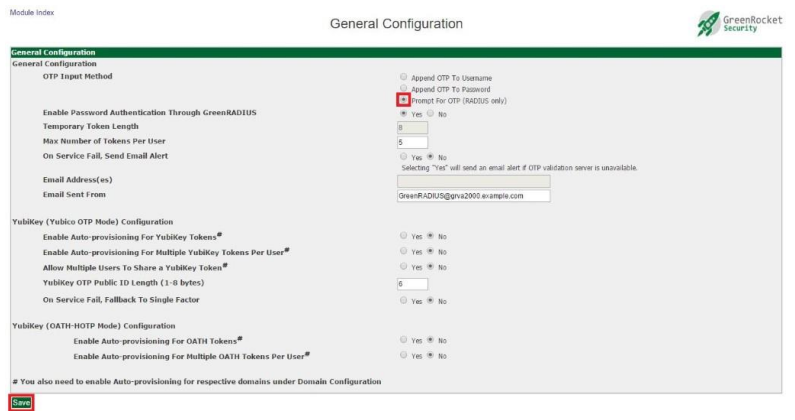
Go to the "Global Configuration" tab and click on "General"

-
Under "General Configuration" section select "OTP Input Method" as "Prompt For OTP (RADIUS only)" and click "Save"
Test SSH Login on Ubuntu Host Using Two-Factor Authentication (Prompt OTP)
- Log in to Ubuntu host using any SSH client programs like PuTTY
- Type username and hit enter.
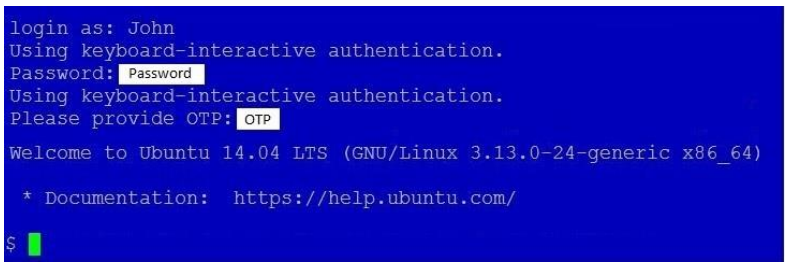
- You will be prompted for password. Enter the user's password configured in your Active Directory/LDAP and hit enter.
- You will be prompted for OTP. Enter an OTP from any one of the tokens assigned to the user.
- e.g. if username is "John," test login as shown in the image below:
Debugging
For debugging, use following command on Ubuntu host
tail -f /var/log/auth.log
Updated 2026-04-17
© 2026 Green Rocket Security Inc. All rights reserved.
© 2026 Green Rocket Security Inc. All rights reserved.