Instructions to Generate Support Package
Introduction
This document provides step by step instructions to enable detailed logging and generate support package.
Steps to Enable Detailed Logging and Generate Support Package
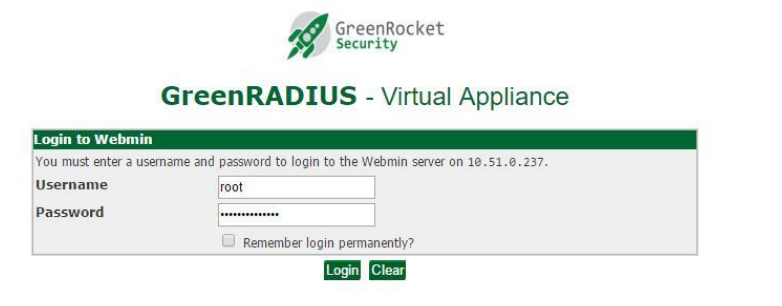
- Login to the GreenRADIUS web admin interface:
URL:https://<<IP address of GreenRADIUS Virtual Appliance>>/admin
Username: gradmin or root
Password GreenRocket!23
-
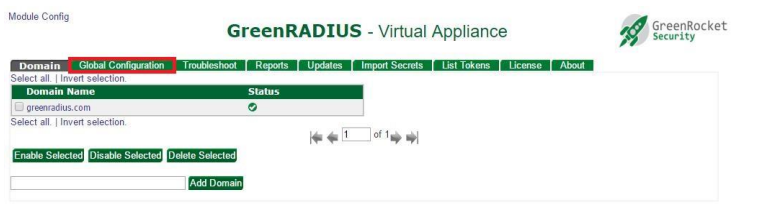
Click on 'Global Configuration'
-
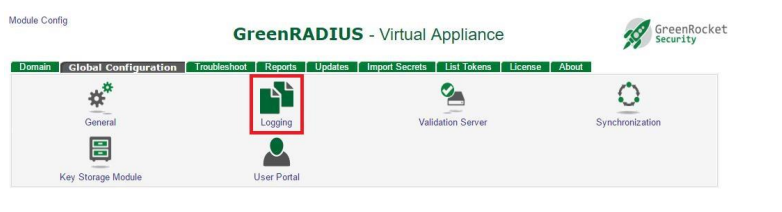
Click on 'Logging'
-
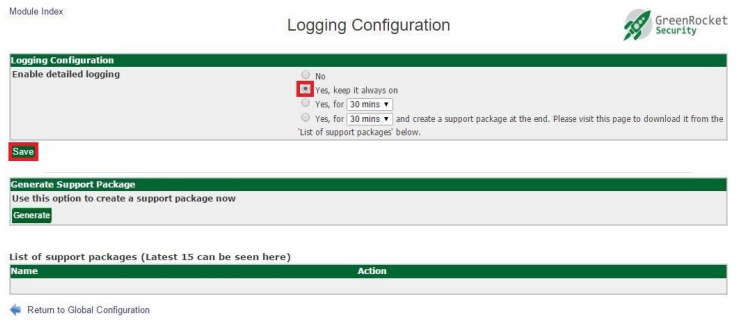
You will see the screen for 'Logging Configuration' as shown here. Various options to enable detailed logging are described in the table below.
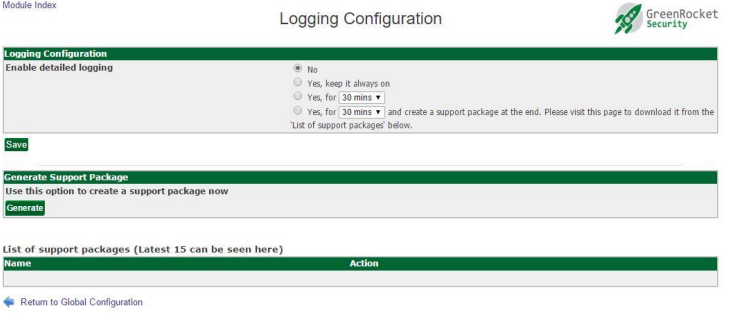
The detailed logging configuration options are described as follows:
| Option | Working |
|---|---|
| No | Disables detailed logging altogether |
| Yes, keep it always on | Enables detailed logging until it is disabled manually |
| Yes, for xx mins/hr | Enables detailed logging for the specified time period only |
| Yes, for xx mins/hr and create a support package at the end | Enables logging for the specified time period. After the specified period is over, detailed logging is disabled and support package is generated. The support package will be listed in the 'List of Support Packages' table shown on the same screen from where you can download it. |
-
Select an appropriate option as your requirement and click 'Save'
-
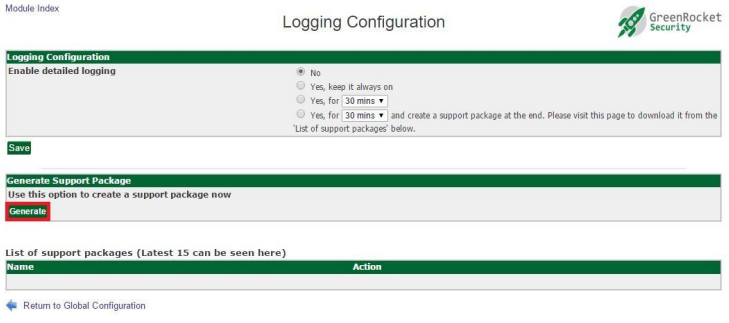
Click on 'Generate' button in the 'Generate Support Package' section, to generate a support package manually.
-
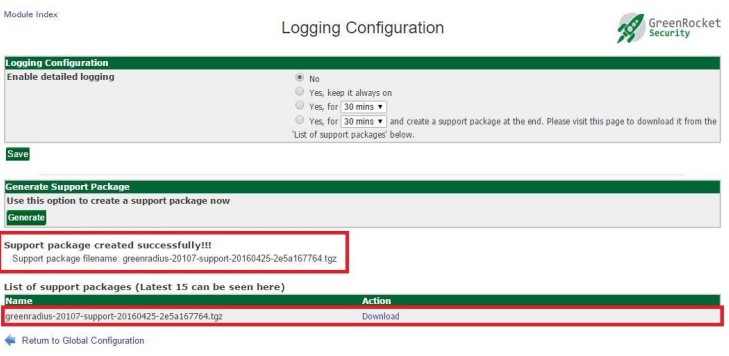
You will see a support packed listed in the 'List of support packages' table:
-
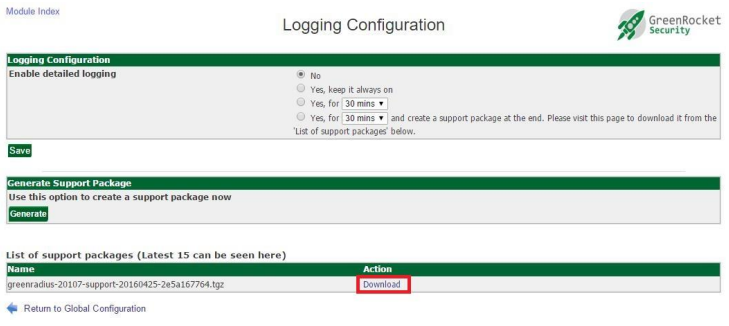
To download the support package, click on the 'Download' link for the support package filename:
© 2026 Green Rocket Security Inc. All rights reserved.